Get started with Kryspal Media
From nothing to your first title, in order. Each step ends with what success looks like.
1. Prepare
You need a machine with Docker and Docker Compose v2 (a Linux box, a VPS or a NAS), a folder with your media (for example /srv/media), and port 5797 free.
2. Install
Linux machine or VPS. Replace /srv/media with your media folder:
curl -fsSL https://media.kryspal.net/install.sh | bash -s -- --media /srv/media
Success: it prints Kryspal Media is installed. and lists each media folder as a host path and a container path, such as /srv/media -> /media. Use the container path (the right-hand one) when you create a library. To read the script first, see the install guide.
NAS (Synology, QNAP, UGREEN and others). In the container manager, create a project, paste this compose file, replace /path/to/media with your media folder and start it:
services:
  server:
    image: kryspal/kryspalmedia:latest
    restart: unless-stopped
    stop_grace_period: 60s
    ports:
      - "5797:5797" # LAN
      - "5798:5798" # WAN
    environment:
      EXTERNAL_HTTP_ADDR: ":5798" # WAN
    volumes:
      - /path/to/media:/media
      - data:/var/lib/mediaserver
      - db:/var/lib/kryspal-db:ro
    depends_on:
      - postgres
  postgres:
    image: kryspal/kryspalmedia-postgres:16
    restart: unless-stopped
    stop_grace_period: 60s
    volumes:
      - pgdata:/var/lib/postgresql/data
      - db:/var/lib/kryspal-db
volumes:
  data:
  pgdata:
  db:
Success: both containers are running. If a library later shows as offline with a permission error, see the "NAS file permissions" section of the install guide.
3. Setup wizard
Open http://<server-ip>:5797, for example http://192.168.1.10:5797. Six steps, each with Next and Back:
- Language: pick one, press Next.
- Admin: type a name and a password twice, press Create account.
- Server: name the server, or skip.
- Third-party player compatibility: keep 3rd-party players for Emby so Infuse, SenPlayer and VidHub can connect.
- Metadata: paste a free TMDB key and press Check and save, or press Later.
- Start: choose Fresh setup, press Start.
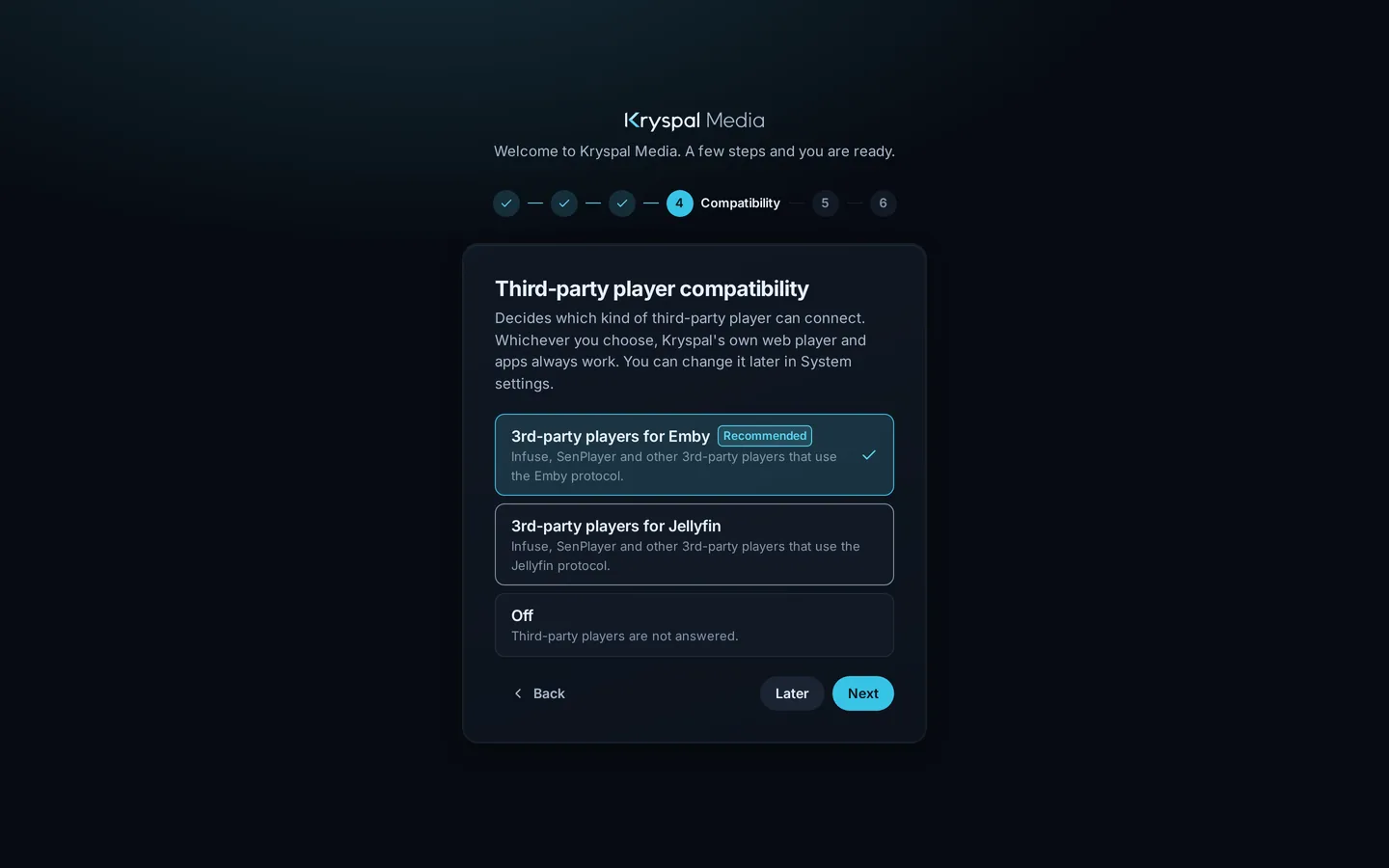
Success: the Add library panel opens. Coming from Emby or Jellyfin? Choose the migration option in step 6 and follow Move from Emby instead.
4. Add a library and watch the scan
- In the panel, type a name, choose Type (Movies or TV shows), type the container path under Folders, such as
/media/Movies, and press Add. Later, open Libraries in the sidebar and press Add library. - Press Create library. Scanning starts by itself.
The library's card shows Scanning with a count and a progress bar. Titles appear while it runs, so you can browse before it ends.
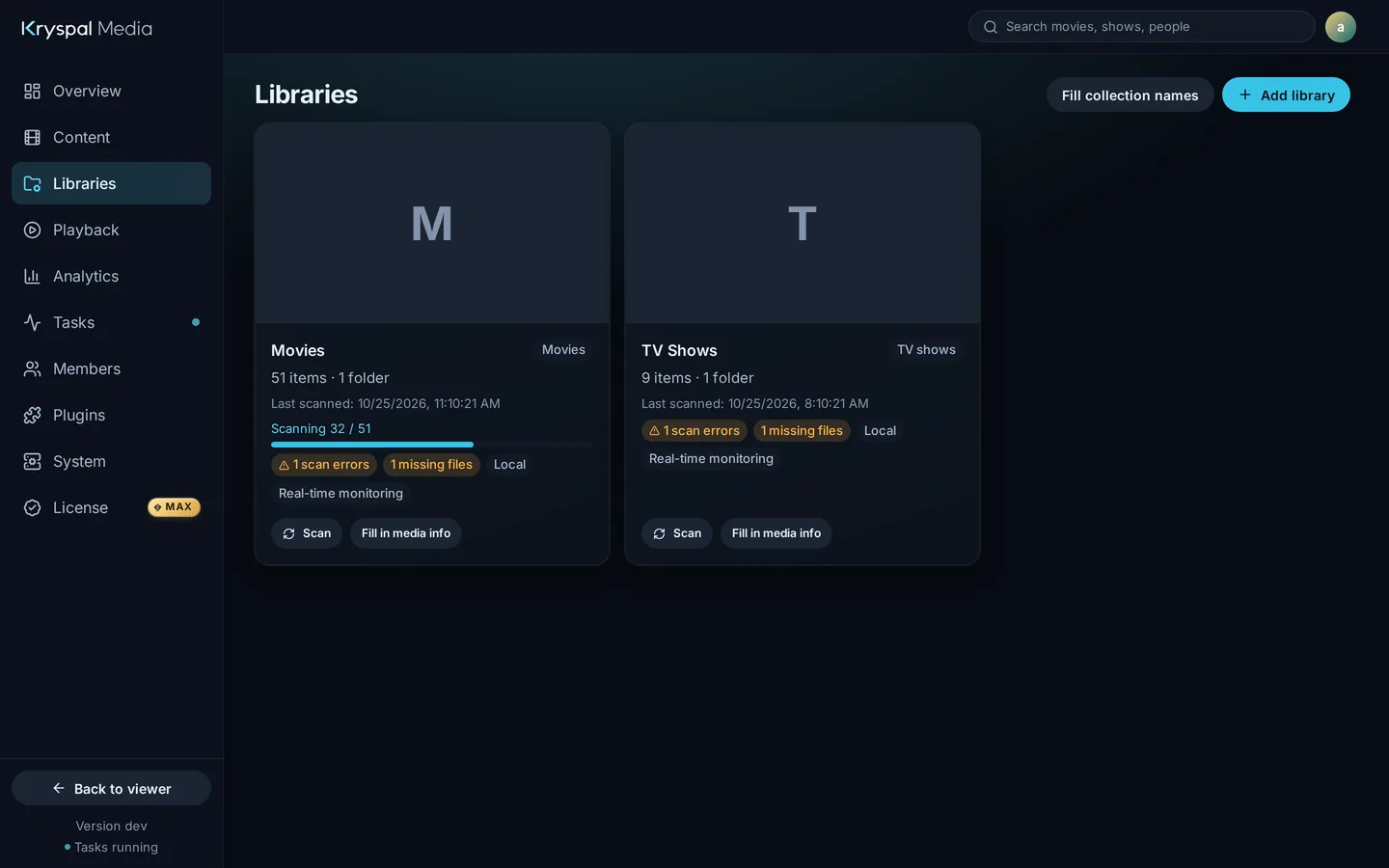
Success: the card shows the item count and a last-scanned time. Keep movies and TV shows in separate libraries; see file and folder naming.
5. Watch in your browser
Press Back to viewer at the bottom of the sidebar, or open http://<server-ip>:5797/web/. Open a title and press Play.
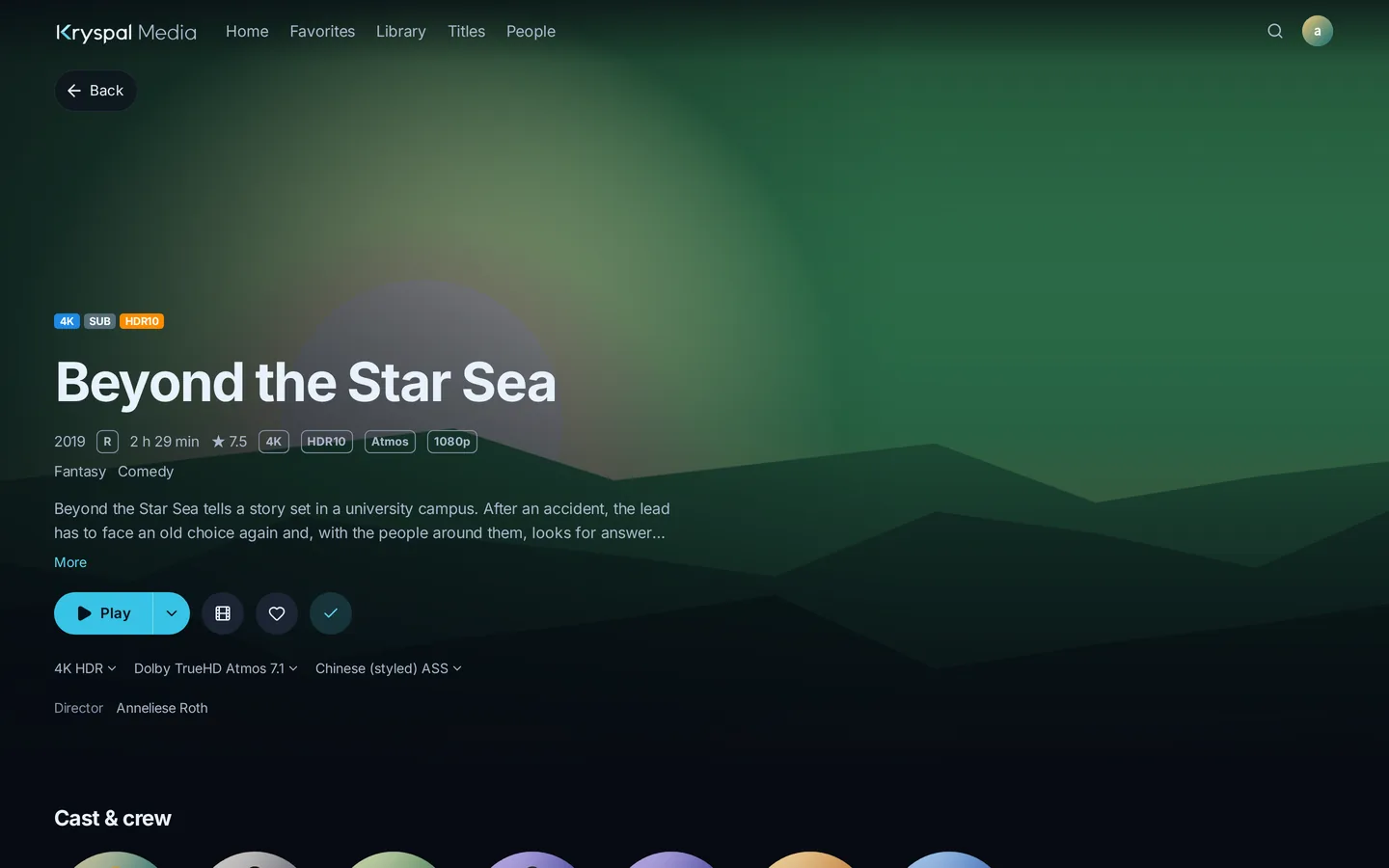
Success: the title plays.
6. Connect Infuse, SenPlayer or VidHub
Add a server in the player:
- Server type: Emby, matching step 4 of the wizard. You can change that choice later in System.
- Address:
http://192.168.1.10:5797, with your server's own IP. No/embyor other path. - User name and password: a member account of this server, such as the administrator you created. It is not a TMDB or website account.
Success: the player lists your library. If it cannot connect, check the address, the port and the compatibility setting. Kryspal Media never transcodes video, so keep the player on original quality or direct play (third-party players).
7. Add family members (optional)
Open Members, press Add member, type a name and set an initial password of at least 8 characters with letters and digits, then press Create member. Set the password now: anyone who picks the avatar of a member without one signs in as that member, and the console warns you about it.