Browse and request with Seerr
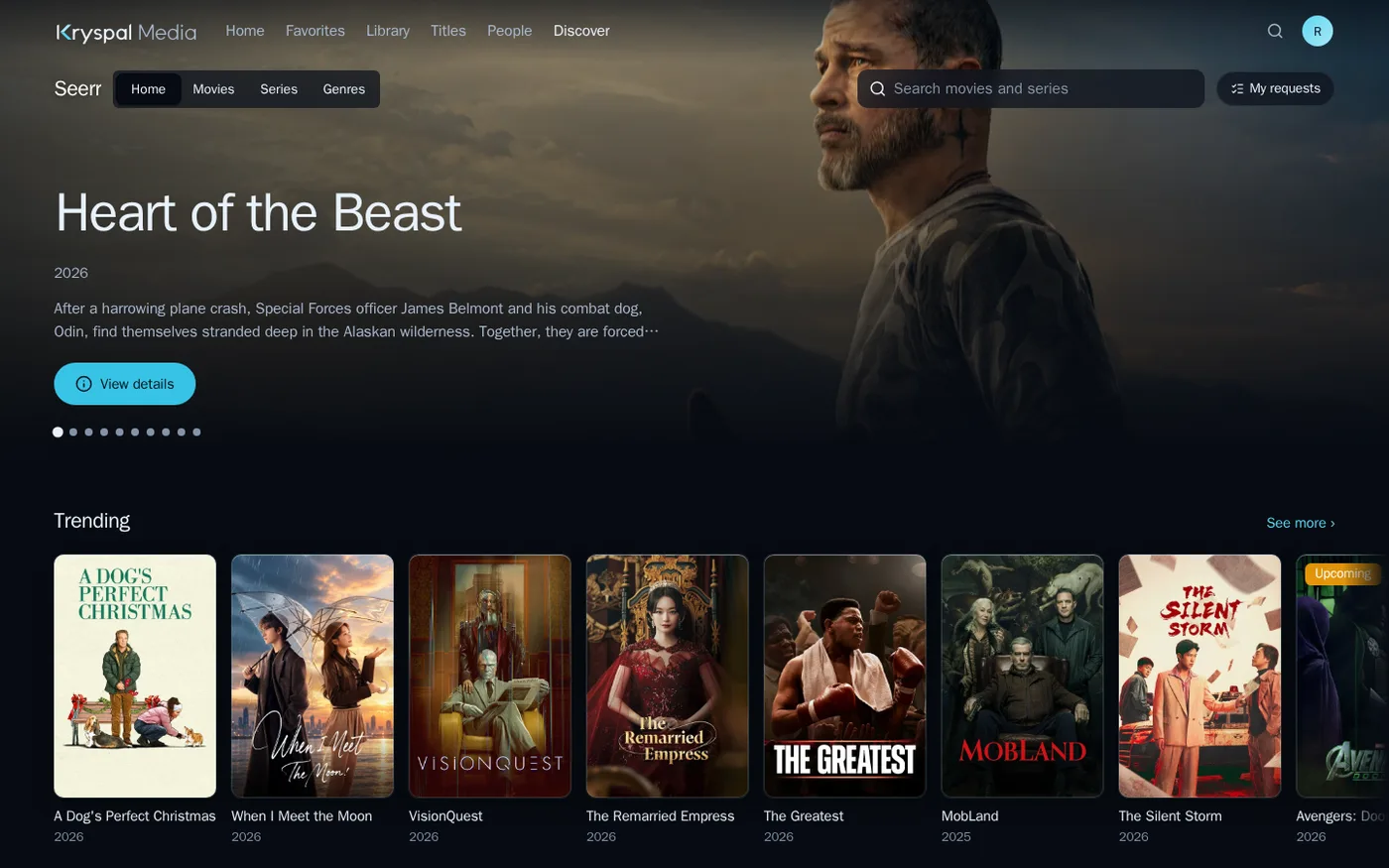
Kryspal Media 0.9.16 adds a Discover page to the web player. It shows titles that are not in your library yet and lets a member ask for one with a button. Kryspal Media provides no content and keeps no list of requests: the page is shown by a plugin, and the Seerr connector connects it to your own Seerr server, which keeps the requests, the approvals and the quotas. This guide goes from installing the connector to a member's first request.
What you need
- Kryspal Media 0.9.16 or later, with an administrator account.
- A Seerr server that you run, reachable from the Kryspal Media server (v3.5.1 or newer).
- Discover is free on every plan.
1. Install the connector
The Seerr connector is in the official plugin catalog. It does not come with the server. In the admin console open the plugin center, find Seerr in Marketplace and press Install. The server downloads and verifies it, starts it and checks that it responds. See Plugin center for what the buttons do.
2. Connect your Seerr server
Open the plugin's page and fill in the settings:
- Seerr address: how the Kryspal Media server reaches Seerr, for example
http://192.168.1.20:5055. A path behind a reverse proxy is fine. - Seerr API key: in Seerr, under Settings → General.
- Address shown to members (optional): when the address above is an internal one, such as a Docker network name, it may not open in a member's browser. Put the address members can open here.
Use Test connection to check the address and the key, then Enable. Because Seerr usually runs on your own network, the plugin asks for local network access; turn on Local network access on its page if it is not on yet.
3. Let members use Discover
The switch Allow Discover is off for every member by default. Open Members, edit a member and turn it on. Administrators can always use it. Members under parental controls cannot use it yet. Once the plugin is enabled and a member is allowed, Discover appears in the navigation of the web player. Members lists the member settings, and Discover describes the page.
4. A member's first request
Requests are made as the member, not as the administrator who owns the API key, so Seerr applies that member's own permissions, approval rules and quota. For that, the connector looks for the member's Seerr user by sign-in name. The first time, a member has to sign in to Seerr once with their Kryspal Media account (the message on the page links to Seerr). The plugin never creates Seerr users.
Then:
- Open Discover, browse the tabs or use the search box, and open a title.
- Press the request button.
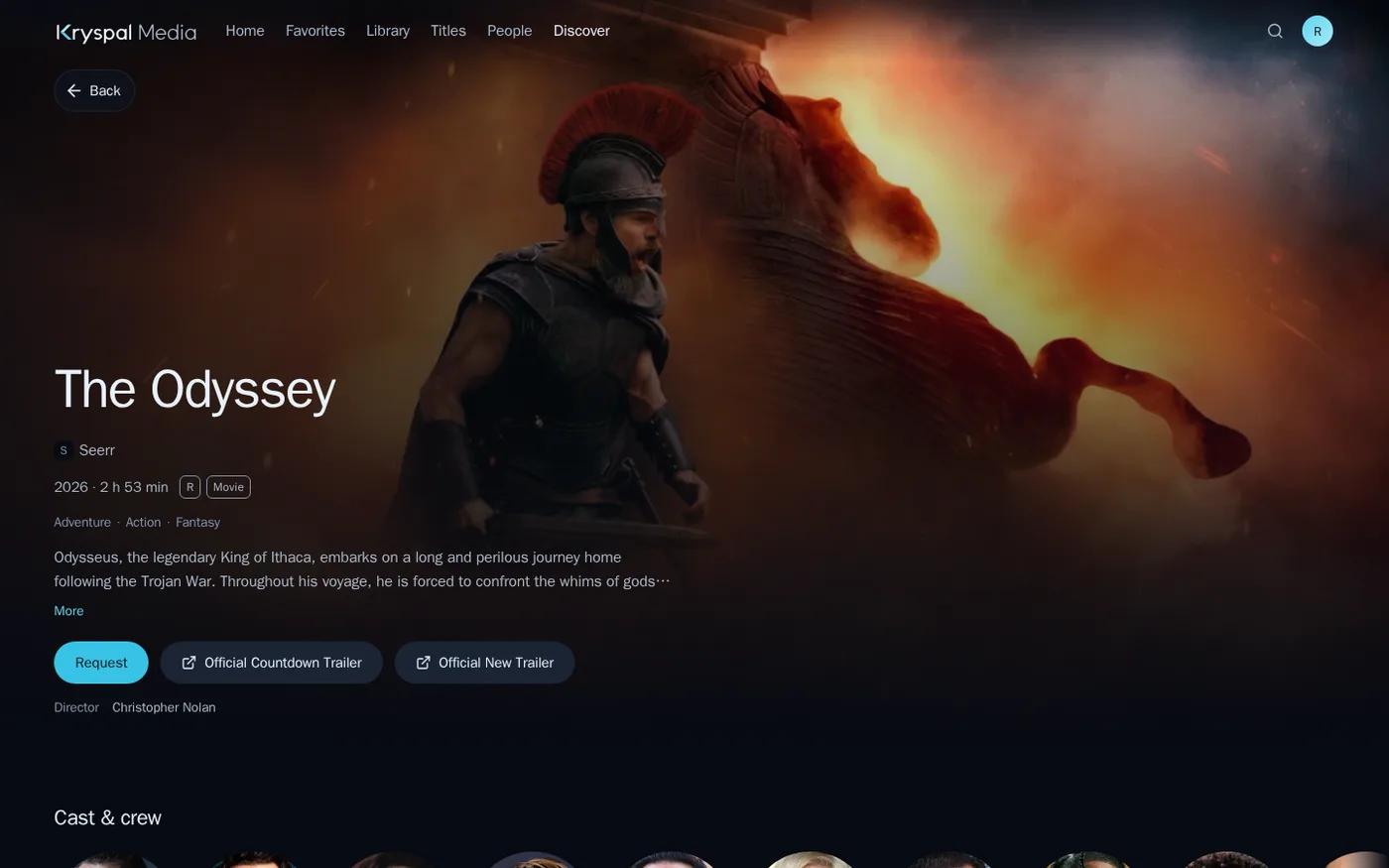
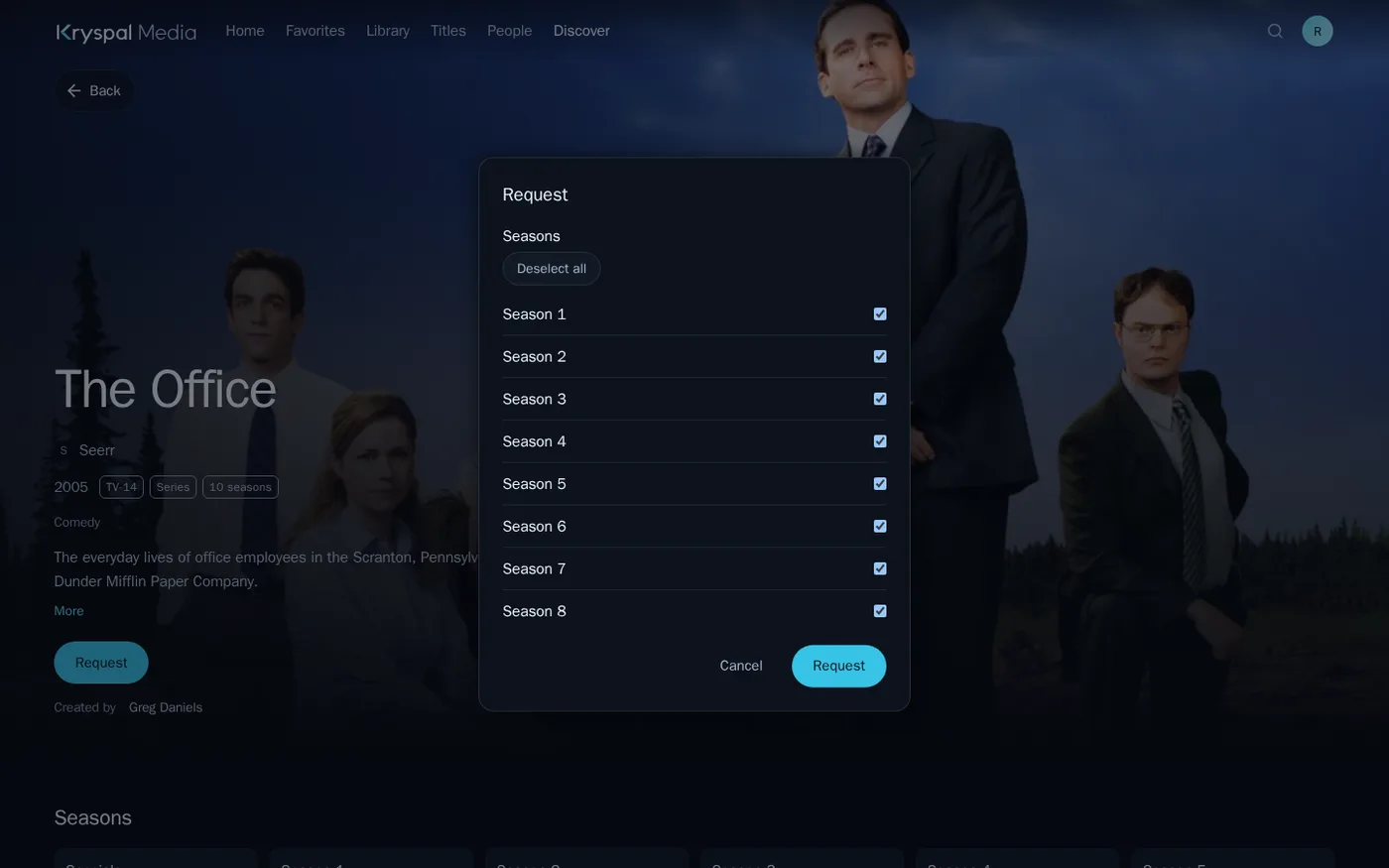
For a series, a dialog asks which seasons you want. Seasons that are already available or requested are shown but cannot be chosen, and the seasons nobody has asked for stay open, so a series can be requested in steps. When your Seerr has a 4K setup, the dialog also asks for the quality.
A title that is already in your library shows In library and opens its page in the library instead of offering a request.
5. Follow your requests
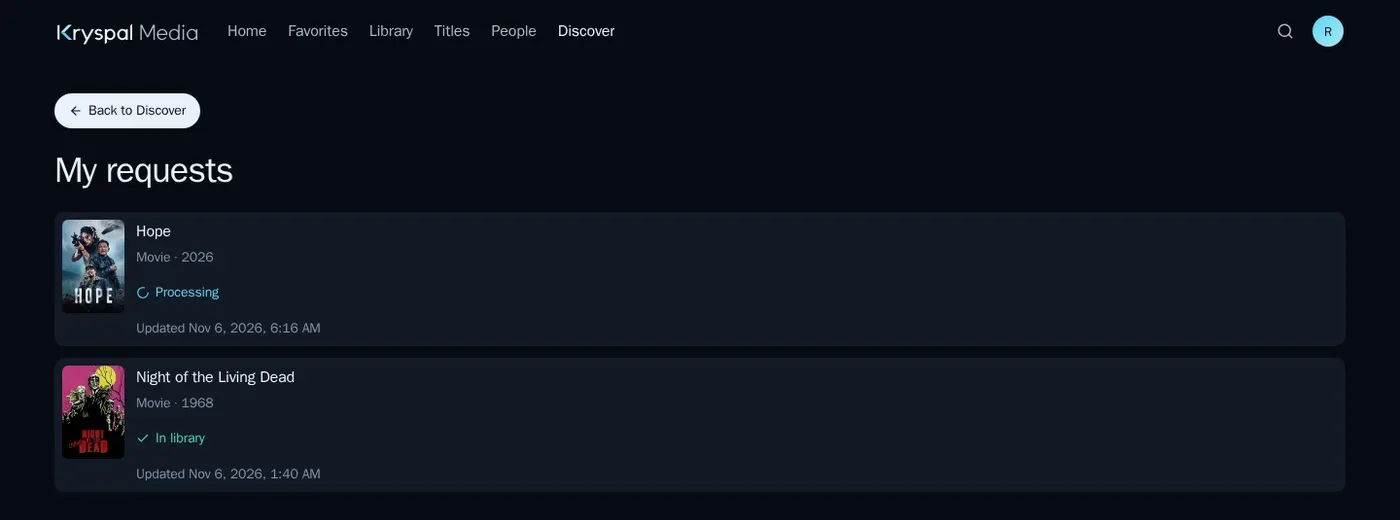
My requests at the top of the page lists what you asked for, with Seerr's state: awaiting approval, processing, partly in library, in library, declined or failed. When Seerr reports it, the list also shows the stage and the expected finish time. Kryspal Media does not store this list; it asks the plugin each time.
Recommendations for you
The connector can add a For you tab: a row of recommendations drawn from titles you watched recently, a button to show another batch, and the series you are partly missing. It is off until you allow it, and it takes two switches:
- The administrator turns on Library hints for Discover on the plugin's page. Until then the plugin receives nothing from your library. Once it is on, the plugin receives a type and external IDs only: some titles of the library the member can access and some titles that member watched recently. It does not receive file names or paths, library names, member names, times or ratings.
- Each member can turn off Allow plugins to read watch history in their personal settings. It is on by default, but it only matters once the administrator allowed the hints. When it is off, only the library titles are shared.
The hints go to the plugin, and the plugin may send these IDs to the service it works with, here your Seerr server. Install only plugins you trust.
Which sites the browser connects to
The plugin talks only to the Seerr address you set. Posters and backdrops are fetched and cached by the Kryspal Media server, so a member's browser never connects to an image host. The browser connects to other sites directly only when a member clicks a link that leaves the server, and each opens in a new tab:
- Trailers on a title's page (at most two), from Seerr's own data for the title, usually a video site.
- Seerr itself, in the message a member sees when they have no Seerr account yet.
Nothing loads in the background and nothing plays inside the page.
One more step after you add a library
When you create a new library in Kryspal Media, refresh the library list in Seerr's settings and enable the new library. Until then Seerr does not mark requests for it as available.
If a source shows as offline, the plugin's check button is the first place to look; Discover has a short list of what to try.