Play Blu-ray ISO in the browser
Want to play a Blu-ray ISO straight from your media server? Plex's help article says disk image formats such as ISO and VIDEO_TS are not supported, and back in 2018 an Emby staff member called ISO playback in the browser experimental and suggested converting to MKV. Kryspal Media treats an ISO image or a BDMV folder as a movie and plays it in the browser in original quality, with no ripping to MKV. This is the third article in a series on the choices behind Kryspal Media; whether you come from Plex, Jellyfin or Emby, it covers what happens between dropping a disc into your library and pressing play.
Why Blu-ray ISO and BDMV folders are hard to play
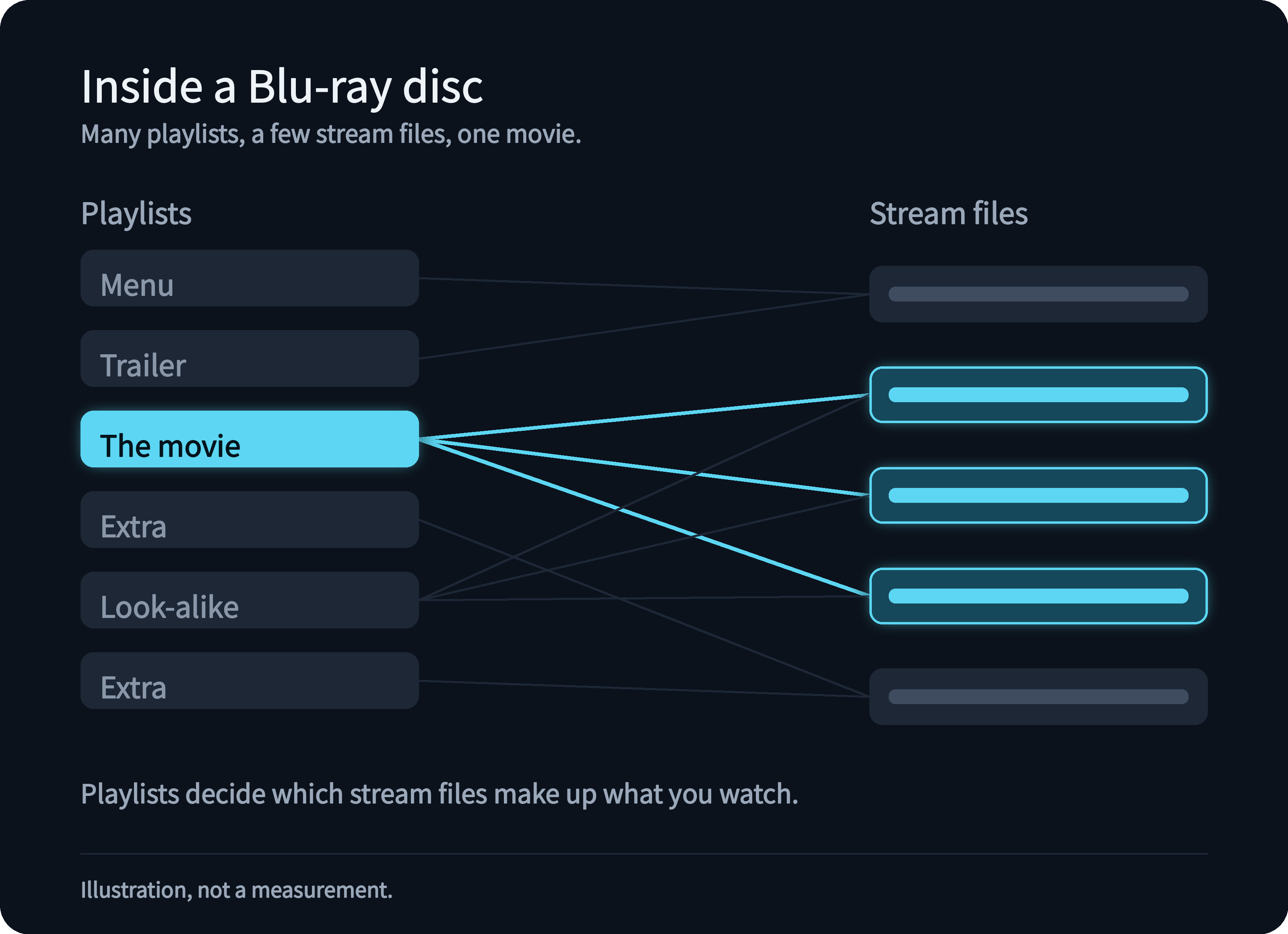
A disc is a UDF file system. Its video lives in many M2TS stream files, and playlists decide which of them make up the movie, the extras, the trailers and the menus. A single disc can hold dozens of playlists, so finding the one that is the movie is a problem of its own, and some discs add misleading playlists on purpose.
ISO images and BDMV folders, recognized as a movie
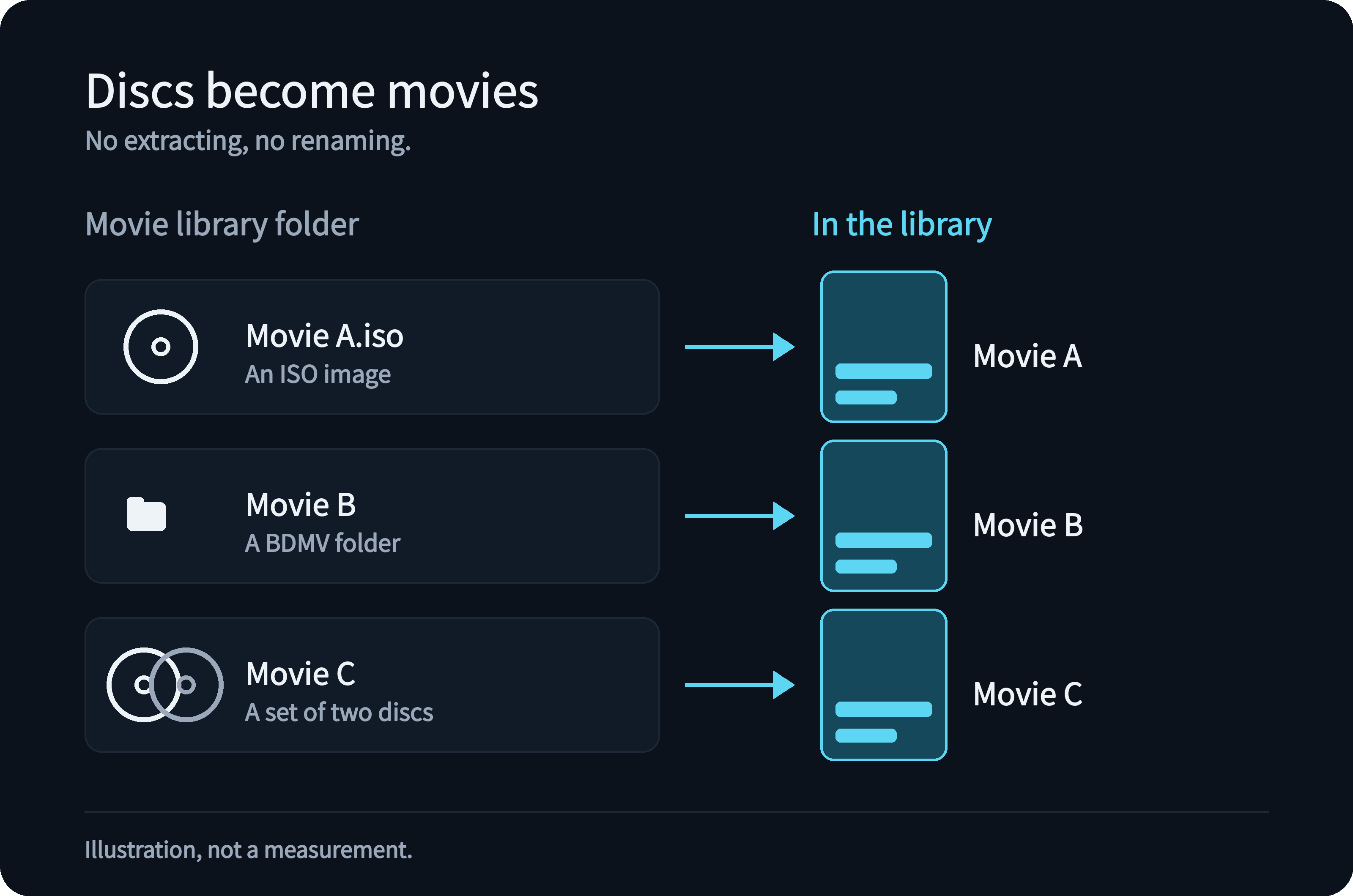
Put an ISO image or a BDMV folder in a movie library and Kryspal Media adds it as one movie, with no extracting and no renaming of the files inside. Both play in the same way, and discs split over several volumes are handled too.
From your own storage
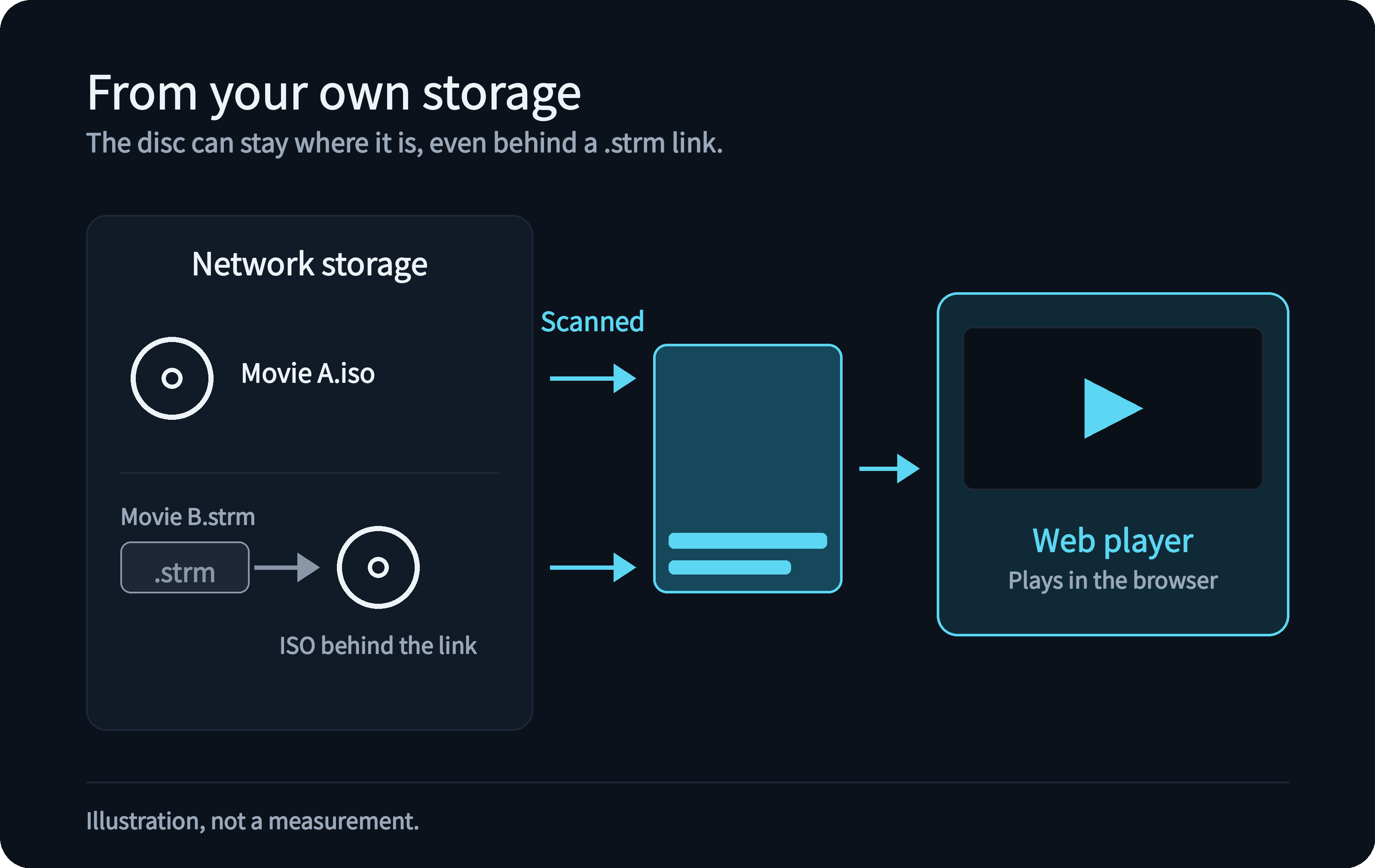
The disc can sit on a local disk, on a mounted drive or on network storage. An ISO on network storage is scanned into the library and starts playing in the web player like any other movie, and an ISO behind a .strm link plays as well.
.strm link, played in the browser.The main feature, found automatically
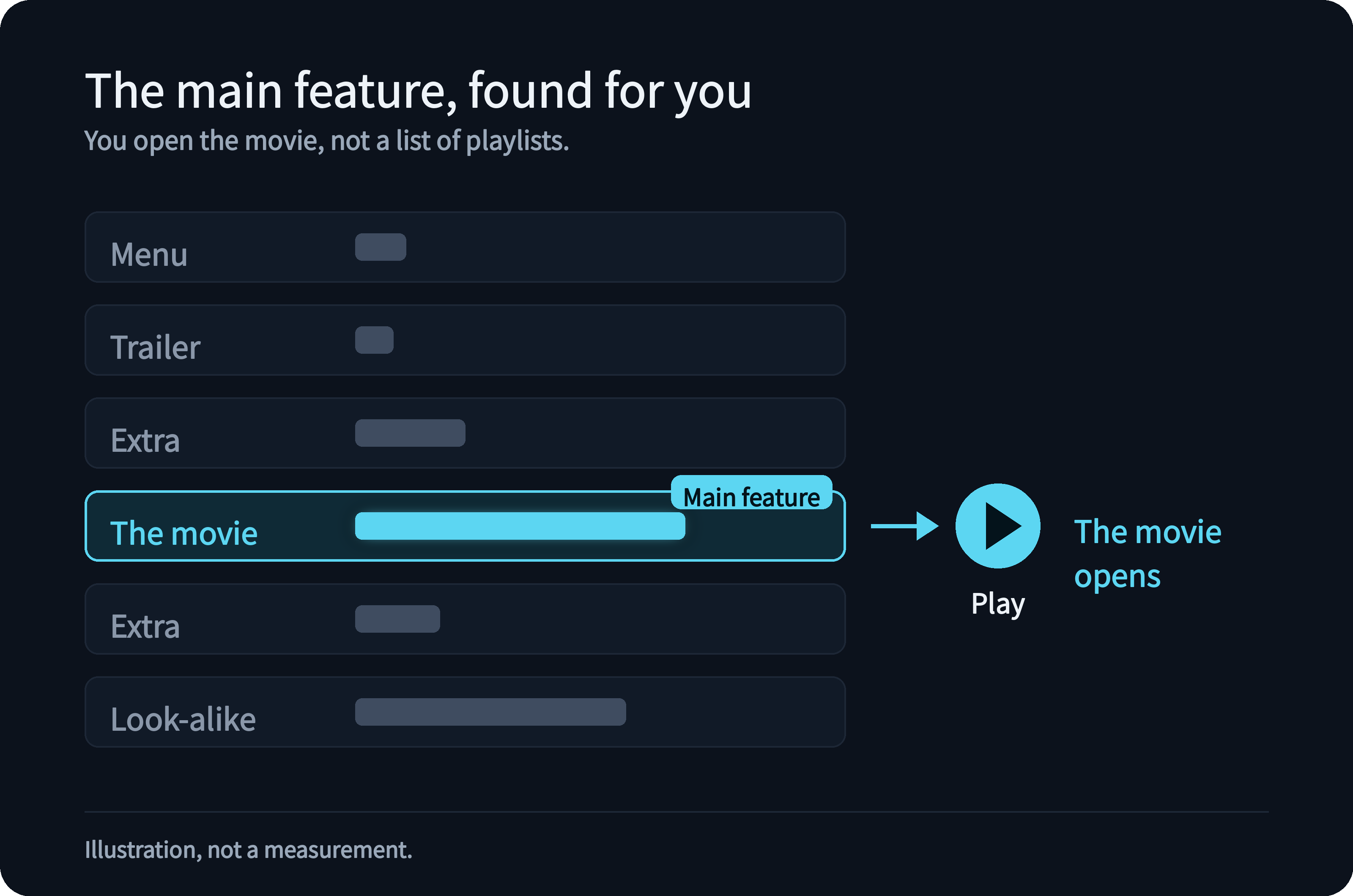
The server identifies the main feature of the disc by itself, so you open the movie, not a list of playlists. It works on the discs we tried; some discs, such as concert discs, series discs with a "play all" playlist, or discs with a deliberately stitched playlist, can lead to a different pick.
Play Blu-ray ISO in the browser in original quality
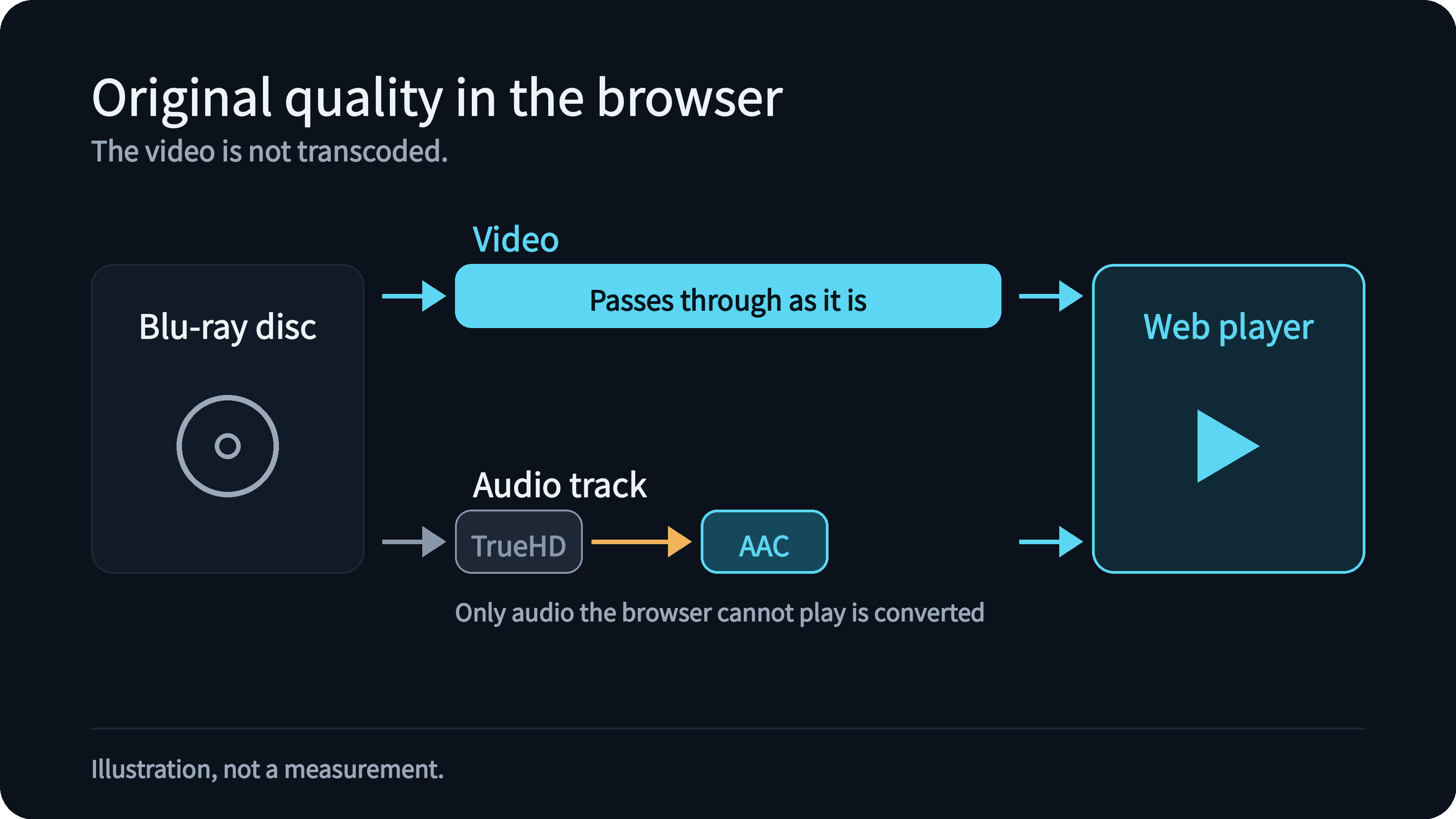
On most Blu-ray discs with the common H.264 or HEVC video, the web player plays the video as it is, without transcoding. Only an audio track the browser cannot decode, such as TrueHD, is converted to AAC.
Jump anywhere
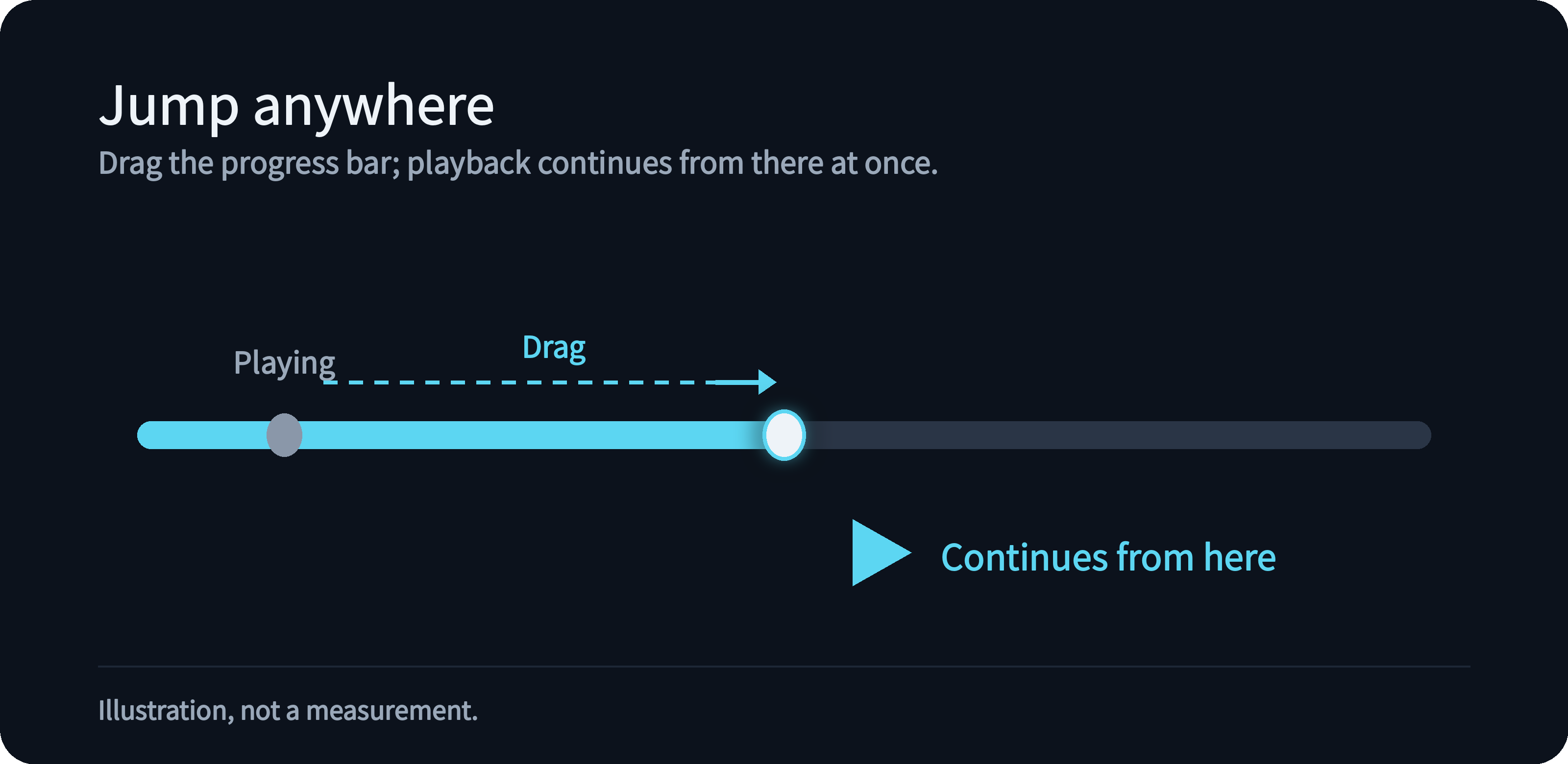
Drag the progress bar and playback jumps to that point right away.
The disc's own subtitles
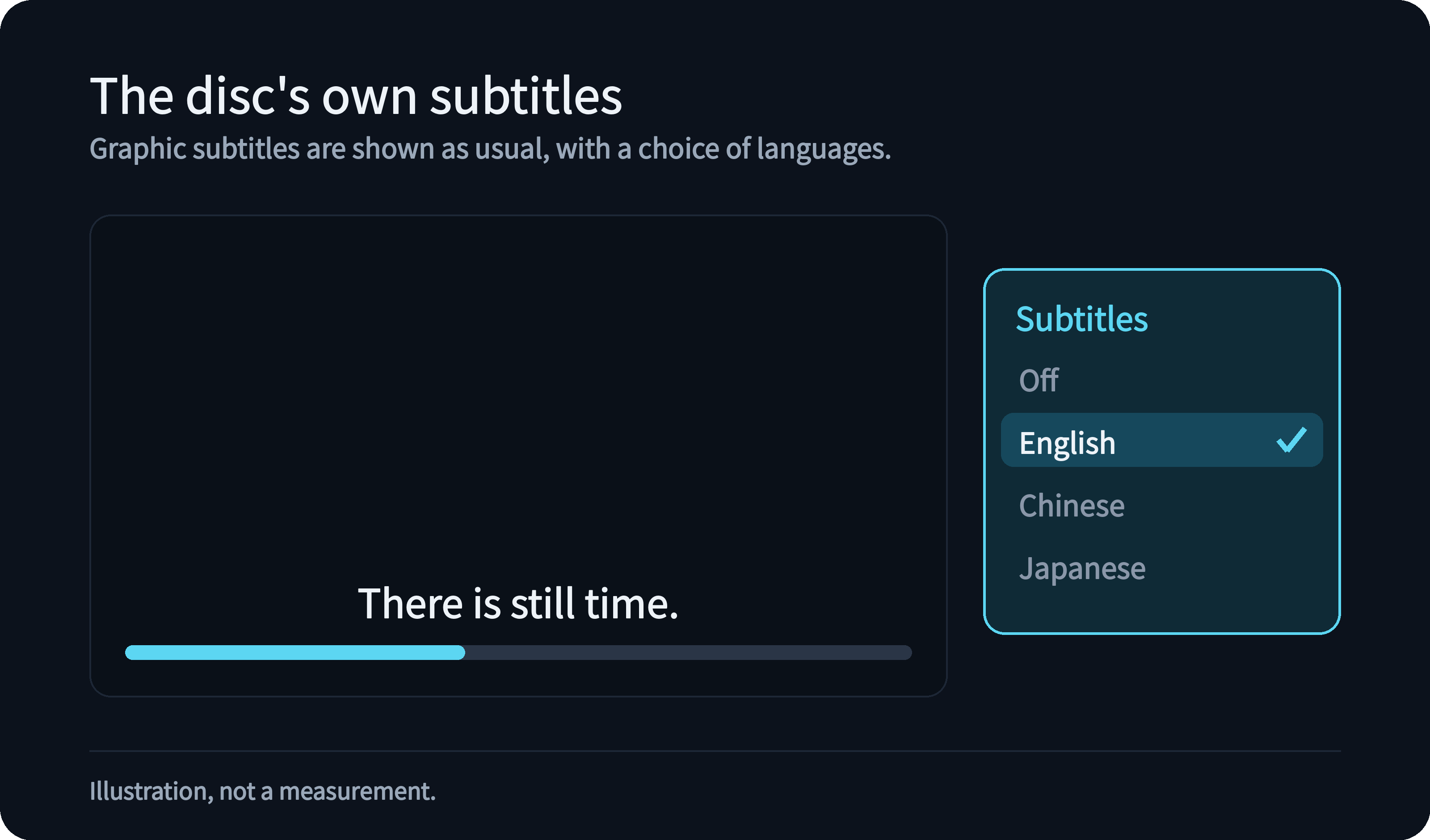
When you play in the browser, the graphic subtitles on the disc are shown as usual, and you can switch between languages.
External players get the original stream
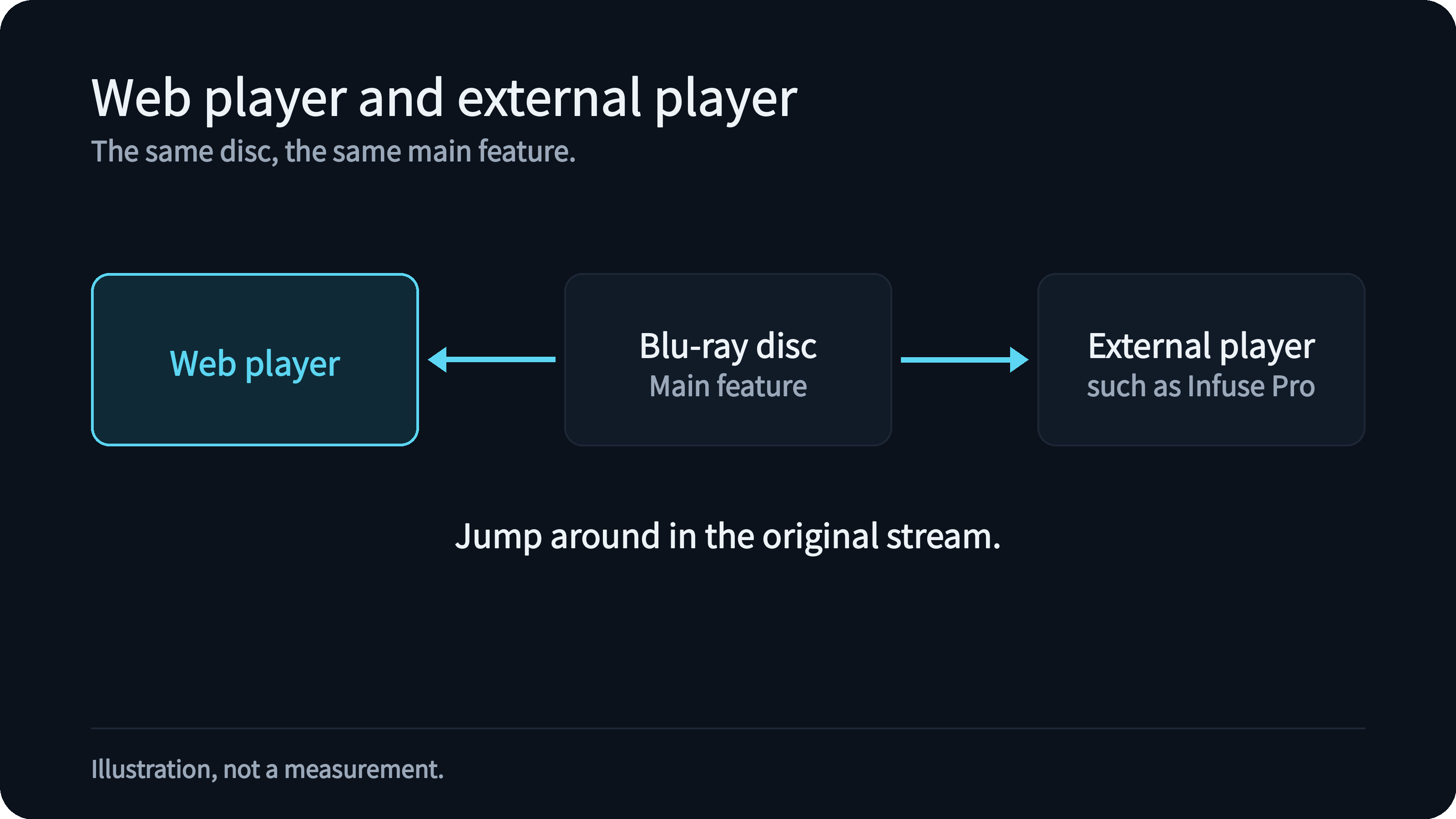
In an external player such as Infuse Pro, the same disc gives you the main feature's original stream, and you can jump around in it.
UHD discs
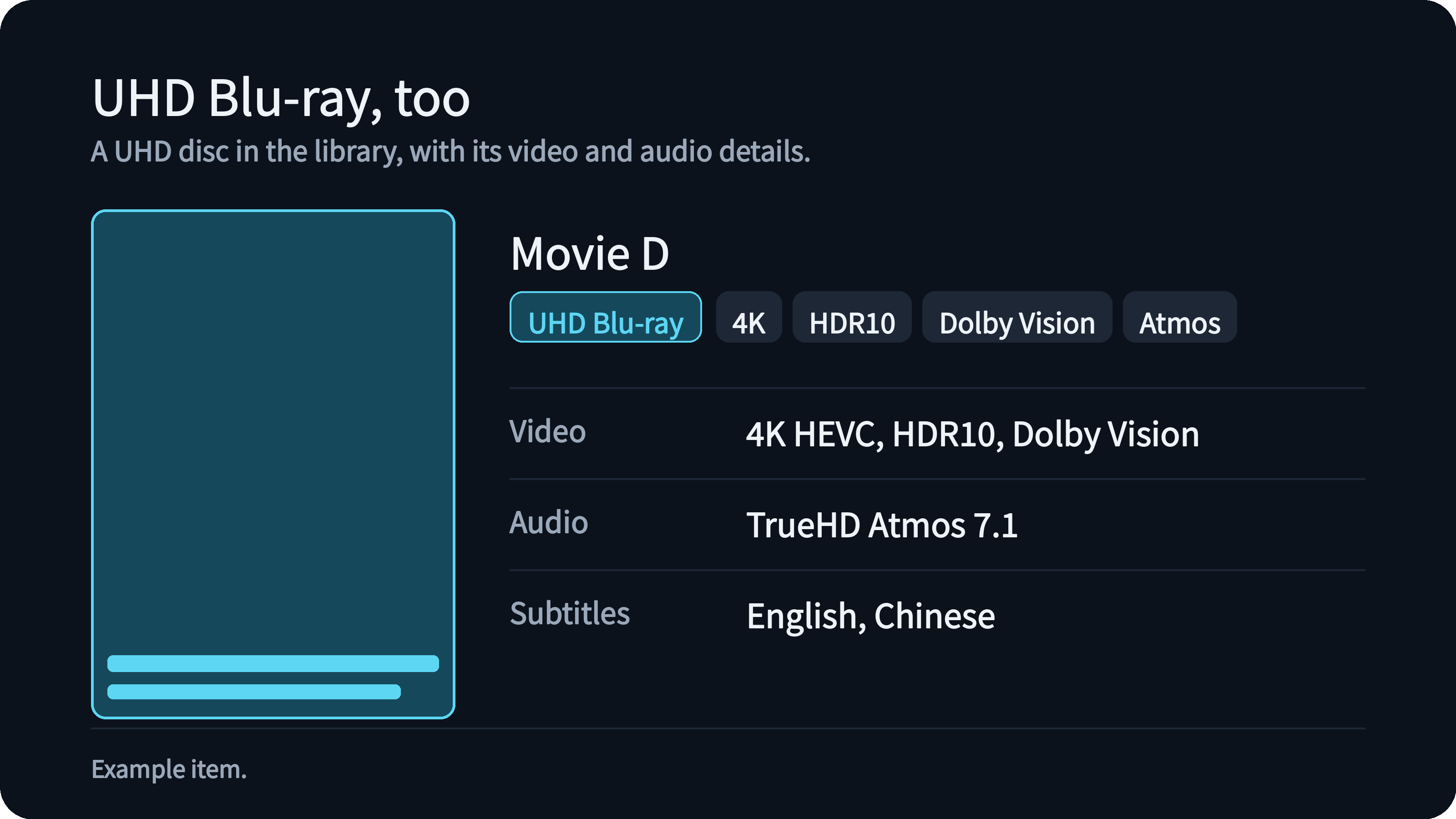
UHD Blu-ray discs are supported as well, and in the web player you can drag the progress bar on them too. Played in Safari on an Apple device that supports Dolby Vision, they play in Dolby Vision; other browsers show them in HDR10.
Try it on your own library
Put a disc image or a BDMV folder in a movie library and scan it. How discs are named and which layouts work and what plays in the browser are in the docs.